App Installation
This document covers the setup and options of the integration app.
Integration is based on three steps below.
- Bx24Zoom Connector App is to be installed on your Bitrix24 portal from the Bitrix24 Marketplace.
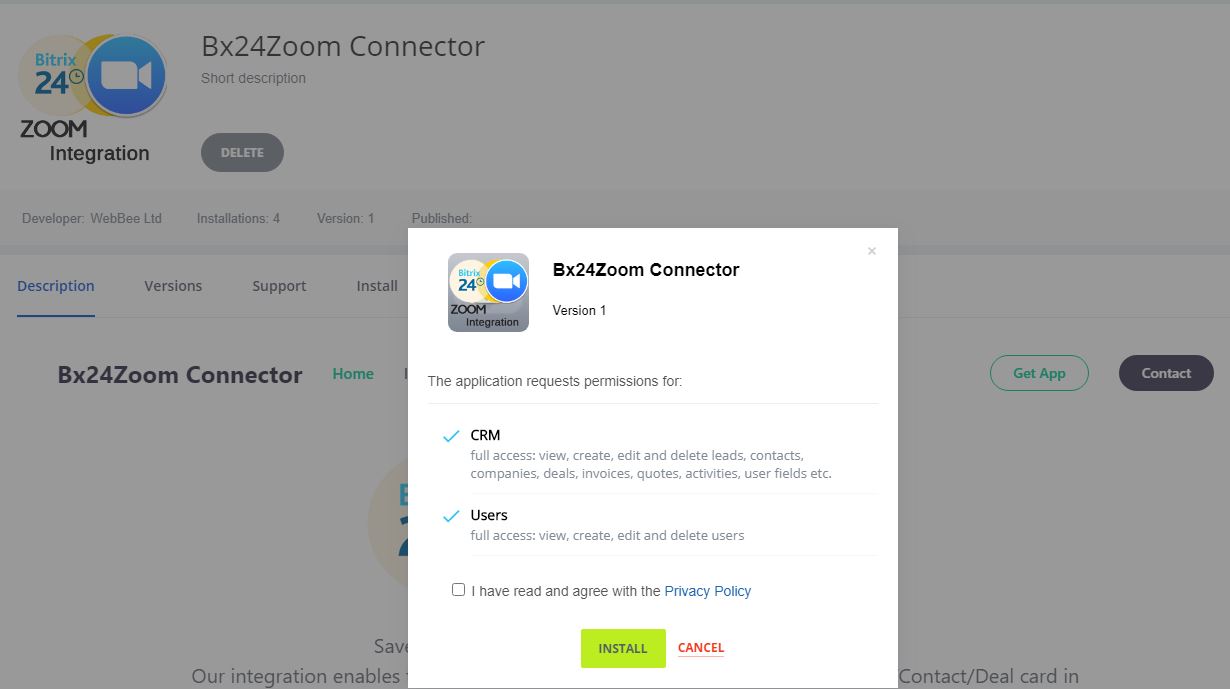
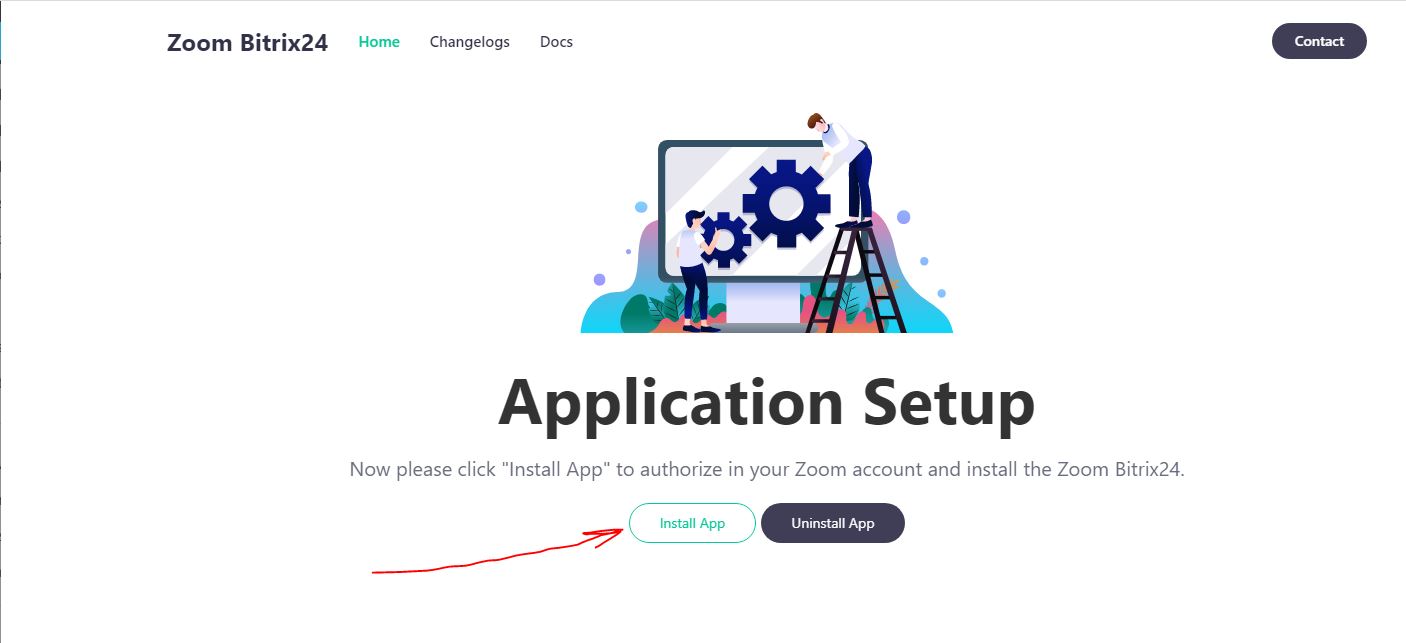
- Once completed, click "Install App" to authorize in your Zoom account and continue installing the Bitrix24 Connector App.
- Bitrix Connector App, should be installed in your Zoom Account from the Zoom App Marketplace.
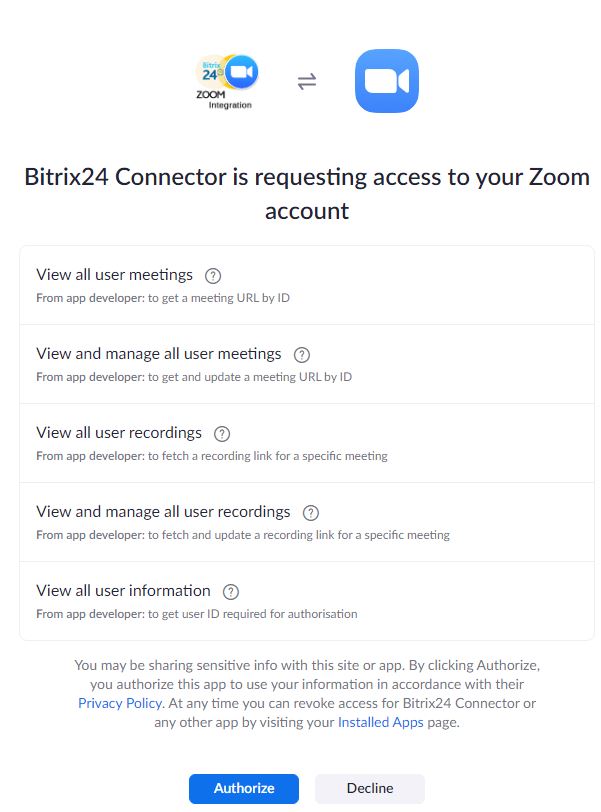
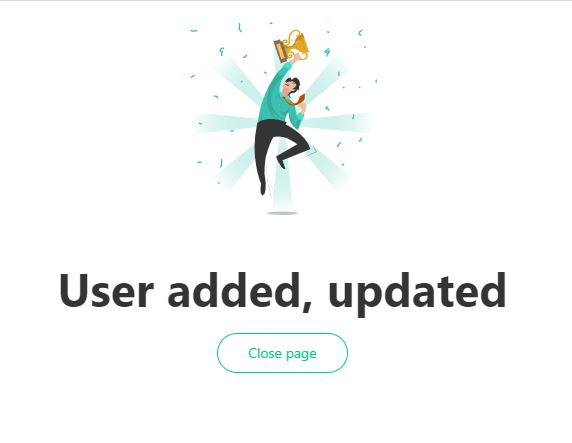
- When finished, the current Zoom account will be authenticated.
How to use the application on Bitrix24
- Click to create a Meeting in the Lead, Contact or Deal card on your Bitrix24 portal.

- Select date and time, add meeting subject, description.
- In the location field type Zoom and click a Save button.
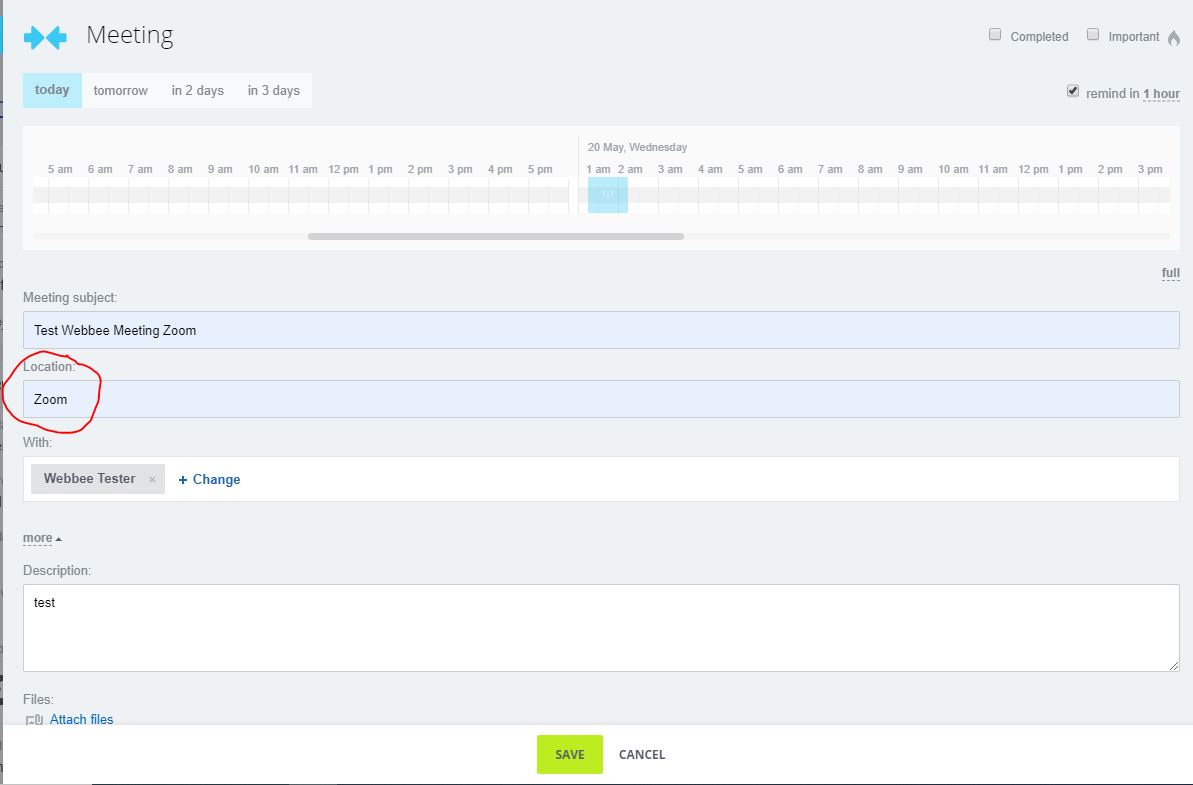
- Meeting with a Zoom link will be created.
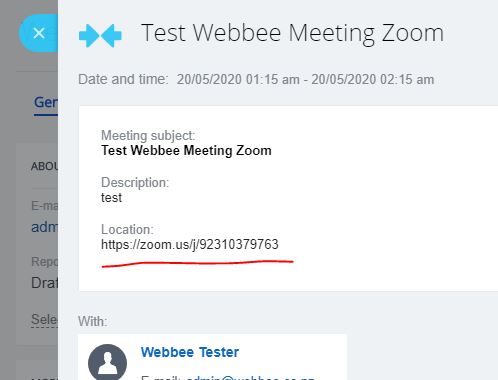
- If your Zoom account supports Cloud recording, the recording link will be fetched and placed into the Location field, once processed. The meeting should be marked as completed in Bitrix24.
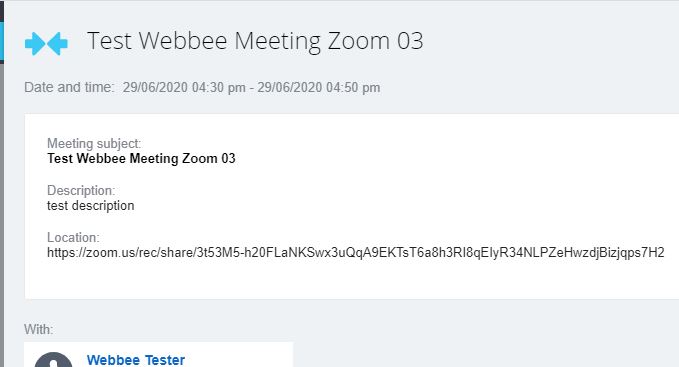
- Cloud Recording link is received to the Bitrix24 Meeting activity.
How to enable Cloud recording in Zoom
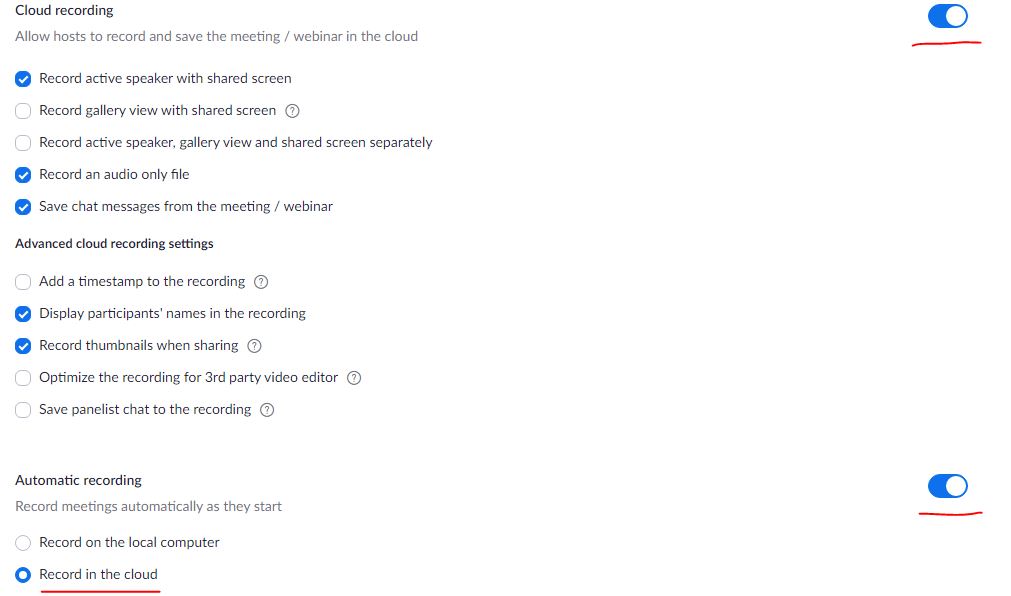
- Login to your Zoom Account and navigate to the Personal Settings -> Recording tab.
- Click the Cloud recording switch-On to allow hosts to record and save the meeting / webinar in the cloud.
- Check other cloud recording settings and enable the Automatic recording if neccessary.
How to uninstall the app
- Login to your Zoom Account and navigate to the Zoom App Marketplace.
- Click Manage -> Installed Apps or search for Bitrix24 app.
- Click the Bitrix24 app.
- Click Uninstall.